
How to prepare your artwork for custom labels


This article explains how to prepare your artwork for custom labels. You can take artwork you’ve already created and prep it for printing. It doesn’t cover how to create a new label design from scratch.
Here are the key steps to follow when preparing your custom label artwork for printing:
- Convert colors to CMYK
- Convert text to outlines
- Create a cutline
- Add a bleed
- Use vector where possible
- Use high-quality images
- Link artwork (if using Adobe)
Let’s go through each one in detail.
1 - Convert colors to CMYK
The first step is to make sure your colors are in CMYK mode.
CMYK stands for cyan, magenta, yellow, and black. This is the color model used for most printing processes. The other option is RGB (red, green, blue), which is used on screens like computers and TVs, where light creates the colors.
We design in CMYK because we print in CMYK. Most printing processes use CMYK, so designing in that format will give you more accurate color results between what you see on screen and what comes out in print.
There are about 16,000 CMYK colors, compared to roughly 16 million RGB colors. That’s why some colors you see in RGB mode can’t be printed accurately, another reason to switch to CMYK early.
2 - Convert text to outlines
Converting text to outlines is really easy. This short video shows how to do it in Adobe Illustrator:
We do this to reduce the risk of your text changing when your file is sent.
If you don’t convert your text to outlines, it depends on the other person having the same font installed, which isn’t guaranteed. There are thousands of fonts, and most brands use custom or unique ones.
This also protects your font formatting like kerning, line spacing, or special font features. So converting text to outlines is essential for label artwork.
3 - Create a cutline
Adding a cutline can be tricky if you want a custom shape, but don’t worry, we can do it for you.
When uploading your artwork, just describe the shape you’d like, and our design team will include it in your proof. Here’s where you can add those instructions:

If your label is a simple shape like a square, circle, or rounded rectangle, you can draw that shape around your design, center it, and set the fill color to none. Like this:
To make a custom shape, use the contour tool. Group the objects you want to outline, apply the contour, and add a 2 mm border if needed.
See it in action here:
4 - Add a bleed and a safe zone
A bleed is the part of your design that extends beyond the cutline, to ensure full edge coverage when the label is cut.
A safe zone is the inner area of the label where important elements like text and logos should stay, in case the cut is slightly off.
We typically recommend a 2 mm bleed and a 2 mm safe zone.

If your label is small and doesn’t allow for a large safe zone, don’t worry, our cutting process is extremely precise and usually doesn’t need it. Read how to add a bleed to your design.
5 - Use vector where possible
No matter how you use your labels, vector files will help them look their best.
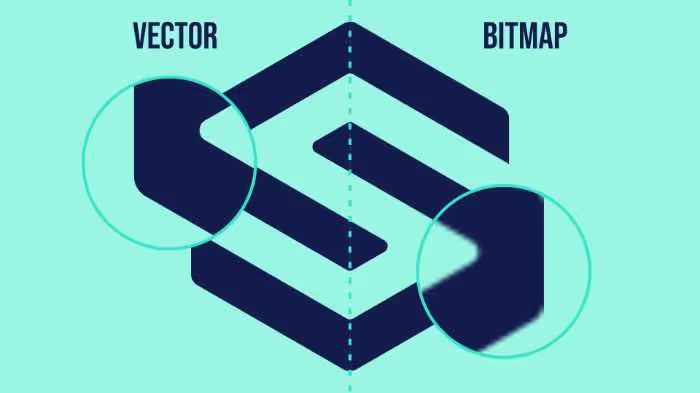
We accept many file types, but vector graphics are built using mathematical paths. In contrast, bitmap (or raster) graphics use pixels (tiny dots).
The benefit of vector artwork is that it scales perfectly to any size and makes it easy to edit shapes, colors, and layout.
Here’s a visual that shows the difference between vector and bitmap:
You can create vector artwork using tools like Adobe Illustrator or CorelDRAW. Canva also allows you to export in vector formats. You can use our free online vectorizer tool.
6 - Use high-quality images
If your design includes photos or bitmap images, make sure they are high resolution. Low-quality images will result in blurry or pixelated labels.
High-resolution images are never vector, they’re always bitmap. That’s totally fine, as long as they’re sharp.
We recommend a 300 DPI image at 1:1 scale (actual size of the printed label). That ensures a clean, crisp result.
On a Mac, you can check resolution by opening your image in Preview, clicking Tools > Adjust Size, and reviewing the details. It’ll look like this:

7 - Link artwork (if using Adobe)
If you’re designing in Adobe Illustrator and working with large files, the app may link to images instead of embedding them directly in the design file.
So when you share your original file (like an AI or PSD), you need to include those linked files too, otherwise the design may appear broken.
You can do this by checking the “Embed linked files” option when exporting:

This creates a larger file, but ensures all elements are included and usable by our design team.
Submitting artwork can be simple. Just follow these steps and your custom label design will go through the proofing process smoothly.
Ready to give it a try but don't know where to start? Let's start exploring with our custom die cut labels.
And if you’re curious to learn more about custom printing, our blog has plenty of helpful resources.
Subscribe to our newsletter
Enter your email below to stay up to date on Sticker it's latest, including new product launches, exclusive deals and more.